
Connect GitHub Enterprise (Cloud & Server) (Broker Set-Up)
Aikido integrates with Github Enterprise Cloud and GitHub Enterprise Server through a secure, app-based connection. This allows Aikido to access the repositories you choose while keeping full control. The connection can be established also through a broker which this guide covers.
Please read the following requirements carefully before setting up the workspace:
- GitHub Organization permissions: Ensure that the user setting up the workspace has sufficient permissions in the GitHub organization to install the Aikido application. In most cases, this requires Organization Owner or Organization Administrator privileges.
- Matching email addresses: when signing up with Google or Microsoft (see step 1 below), ensure that the email address used for sign-in matches the email address associated with the user's GitHub account.
#Installation
Aikido connects to your GitHub Enterprise setup by creating a GitHub App on your server. The app includes the permissions and callbacks needed for Aikido to work. After it is created, you can install it in any organisation on your GitHub Server instance that you want to link to Aikido.
To create the GitHub app on your instance, follow the steps below.
Create your account
To connect your GitHub Enterprise, first sign up or log in to Aikido using Google or Microsoft. On the signup screen, click Google / Microsoft.
Start the GitHub Enterprise setup
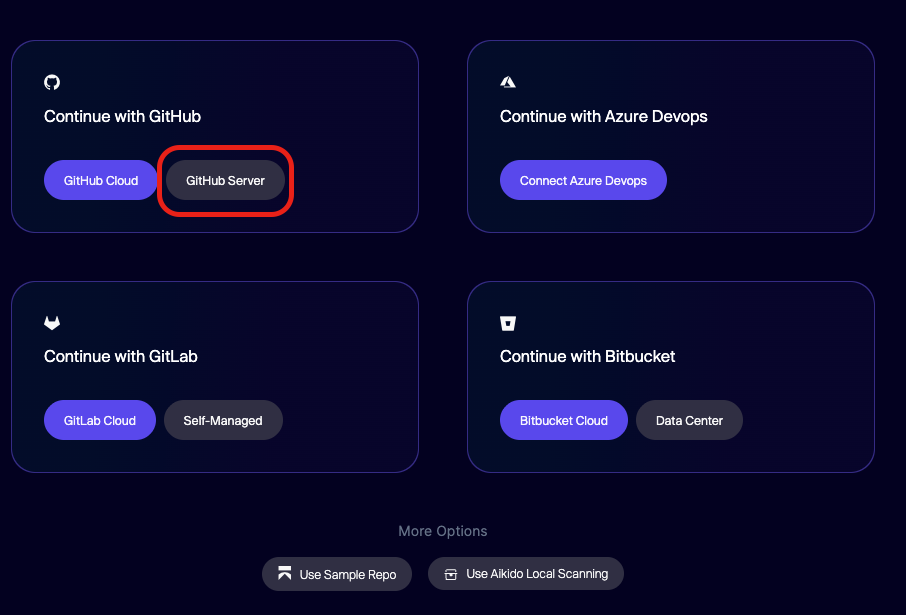
Once you're authenticated, create a new workspace by clicking GitHub Server in the GitHub section.
Enable Broker access
Enable the Aikido broker by clicking the toggle in the "Advanced Connection Options" section.
Click Next, Install App and then switch to https://app.aikido.dev where a Local Scan workspace will be created.
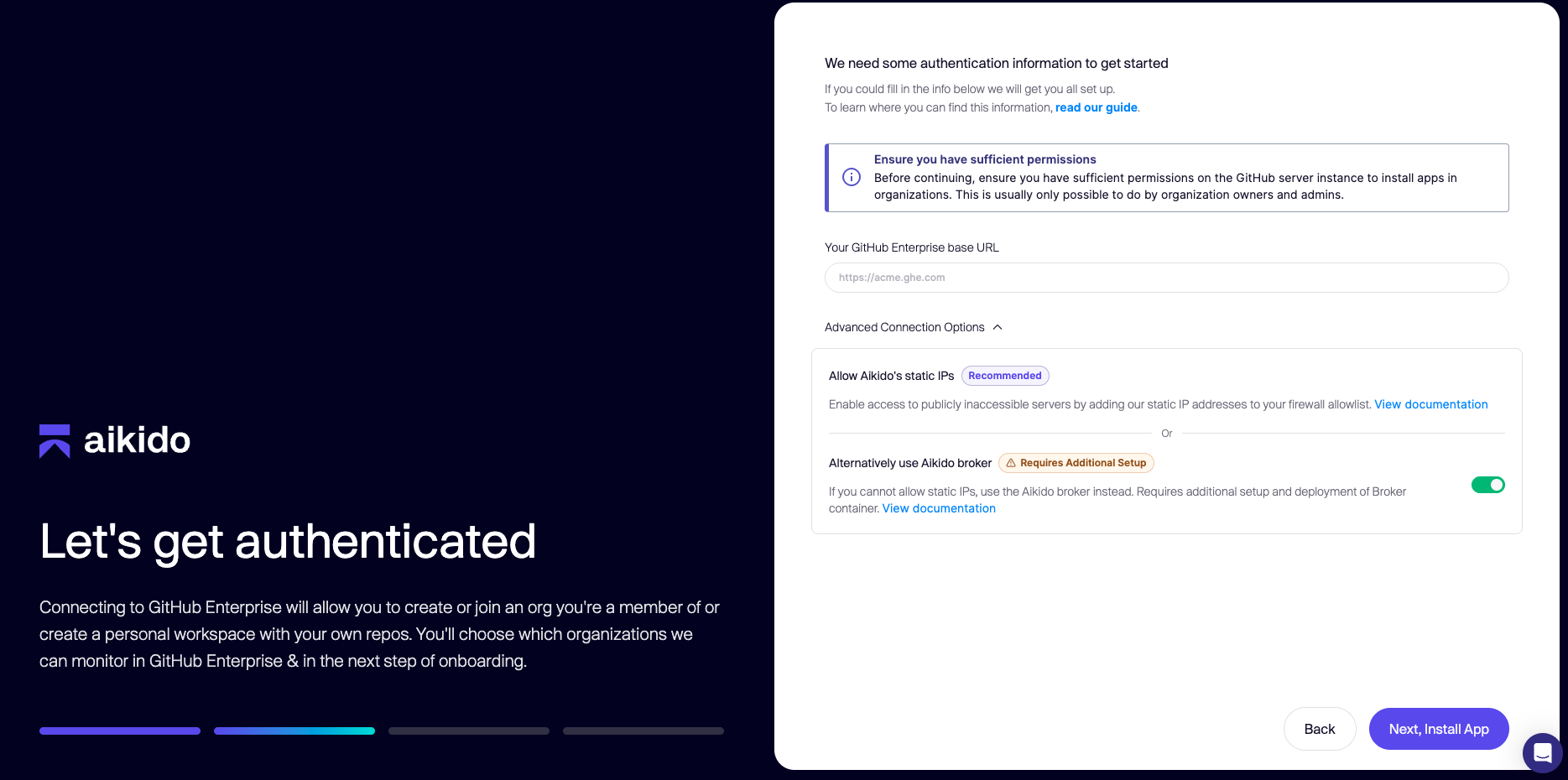
Aikido onboarding: Enter GitHub Enterprise URL to authenticate
Configure the broker
Configure the Broker using the guide below through the Local Scan workspace. After you deploy it, return here to finish the GitHub Enterprise setup.
Aikido Broker for Internal Applications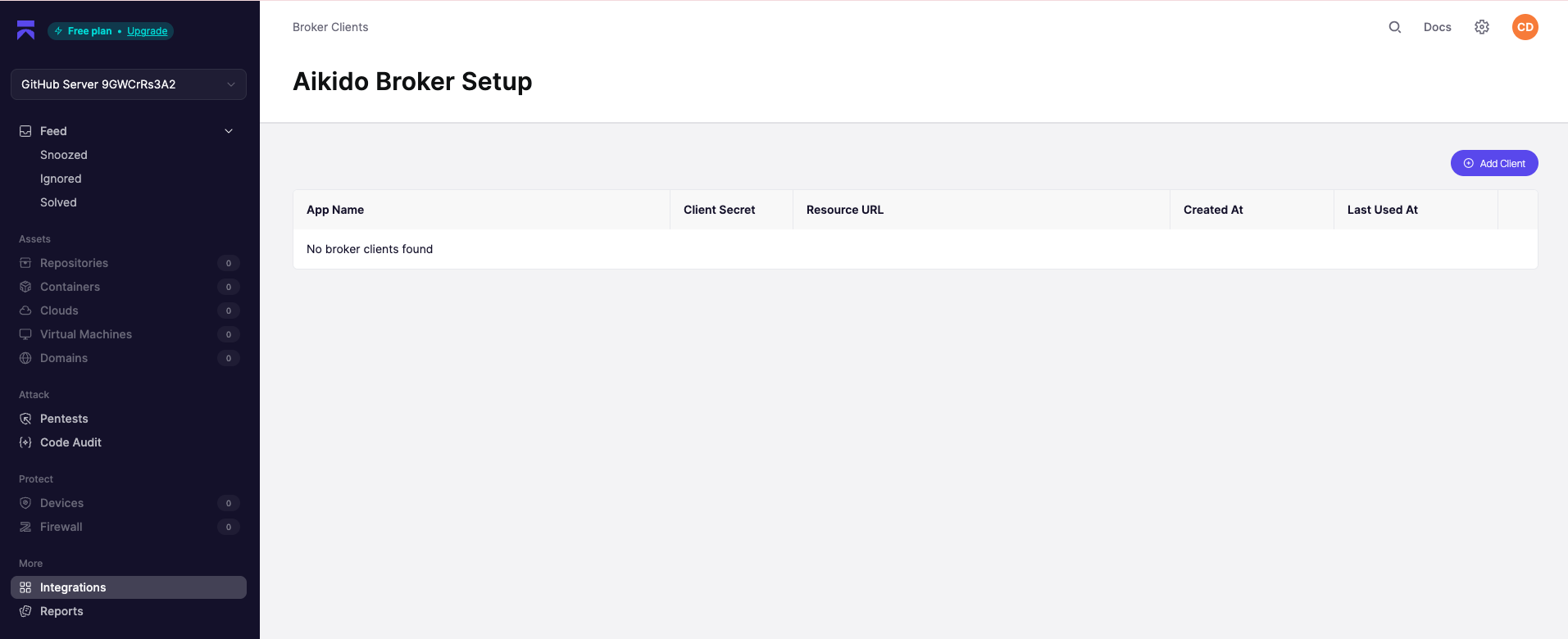
Install Aikido Github App on your Github Enterprise
After you create the broker and deploy it in your environment, you can complete the GitHub Enterprise setup.
First, copy the Broker URL. It looks similar to this:
https://55673-355dsfwea68cb.aikidobroker.comThen click Complete GitHub Server Setup.

A file named
install.htmlis downloaded to your machine. It contains an HTML page with a form that sends a JSON payload to your GitHub Enterprise to create the GitHub App.Open the file in your browser and select Install to continue the setup process.

After clicking "Install" you are redirected to a page on your GitHub Enterprise that prompts you to install the app. Choose
Create GitHub App for Userto create the app on your server.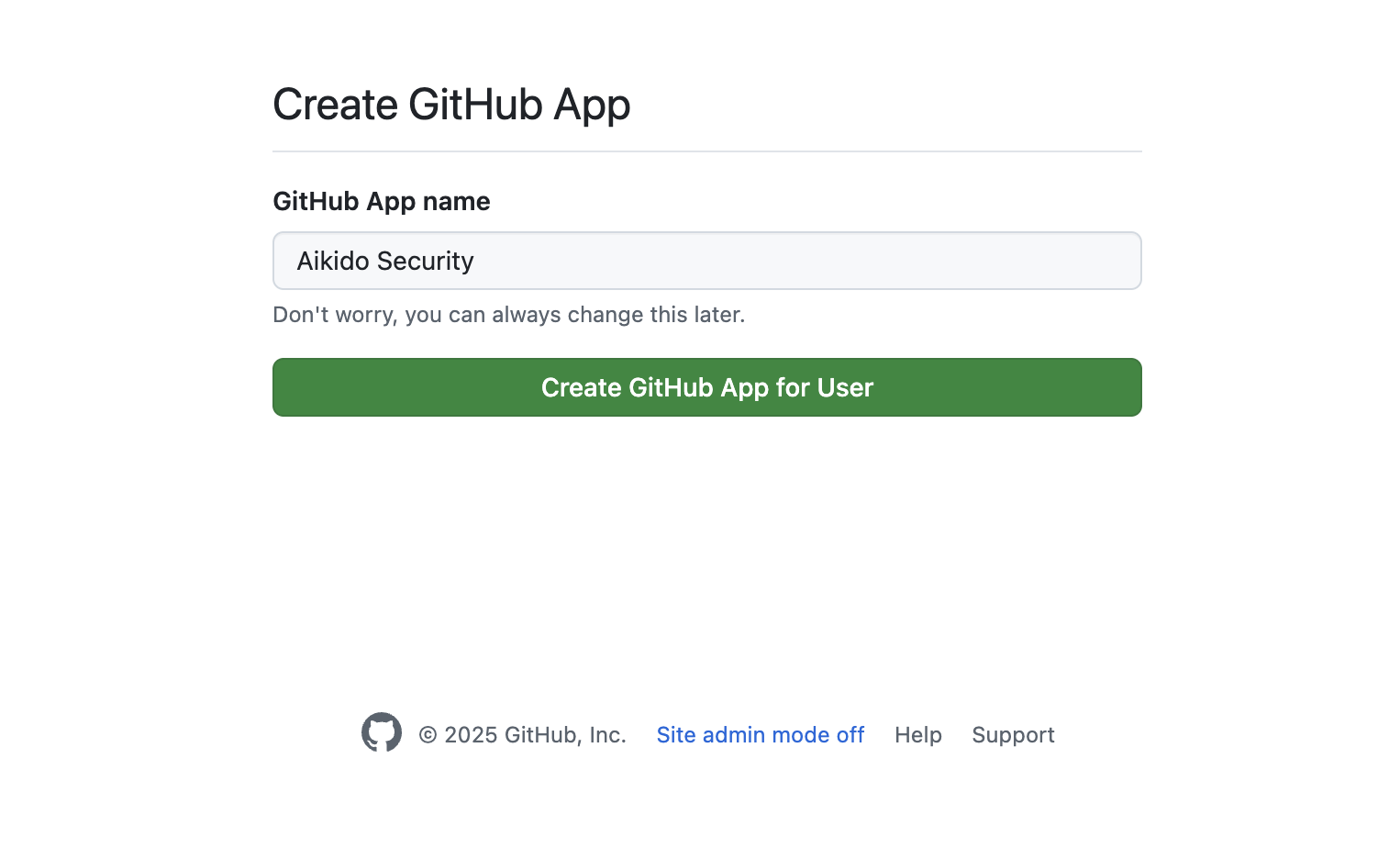
Authorize Aikido Github app
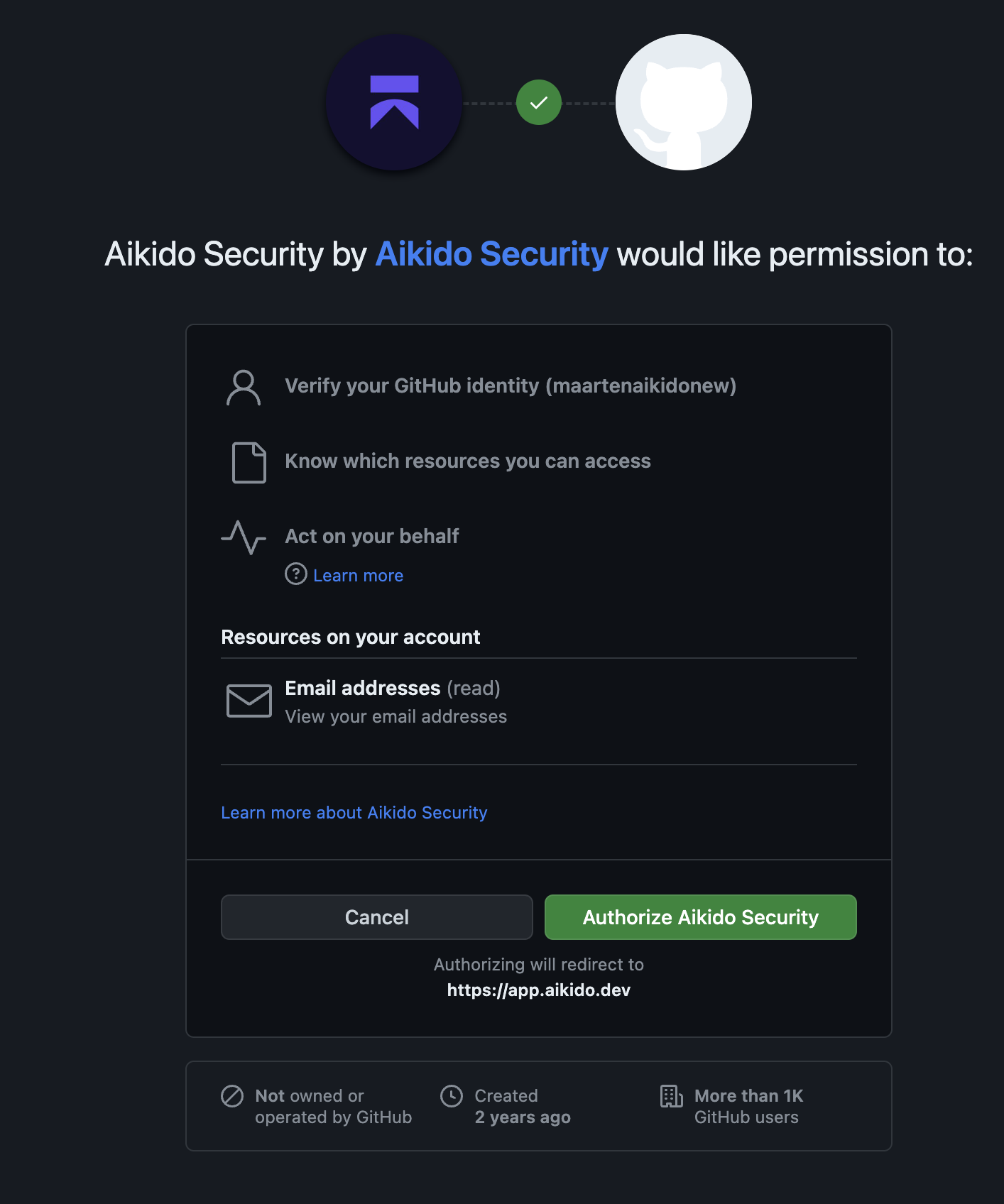
Now you need to authorize the new GitHub App with your user account through OAuth. This step confirms that the app was created correctly and that you have permission to use it. The screen you see will be similar to the example below.
Connect Github organization
Choose the GitHub organisation where you want to install the application and link it to Aikido. You can add more organisations later. After selecting the organisation, confirm the authorization for the GitHub App.
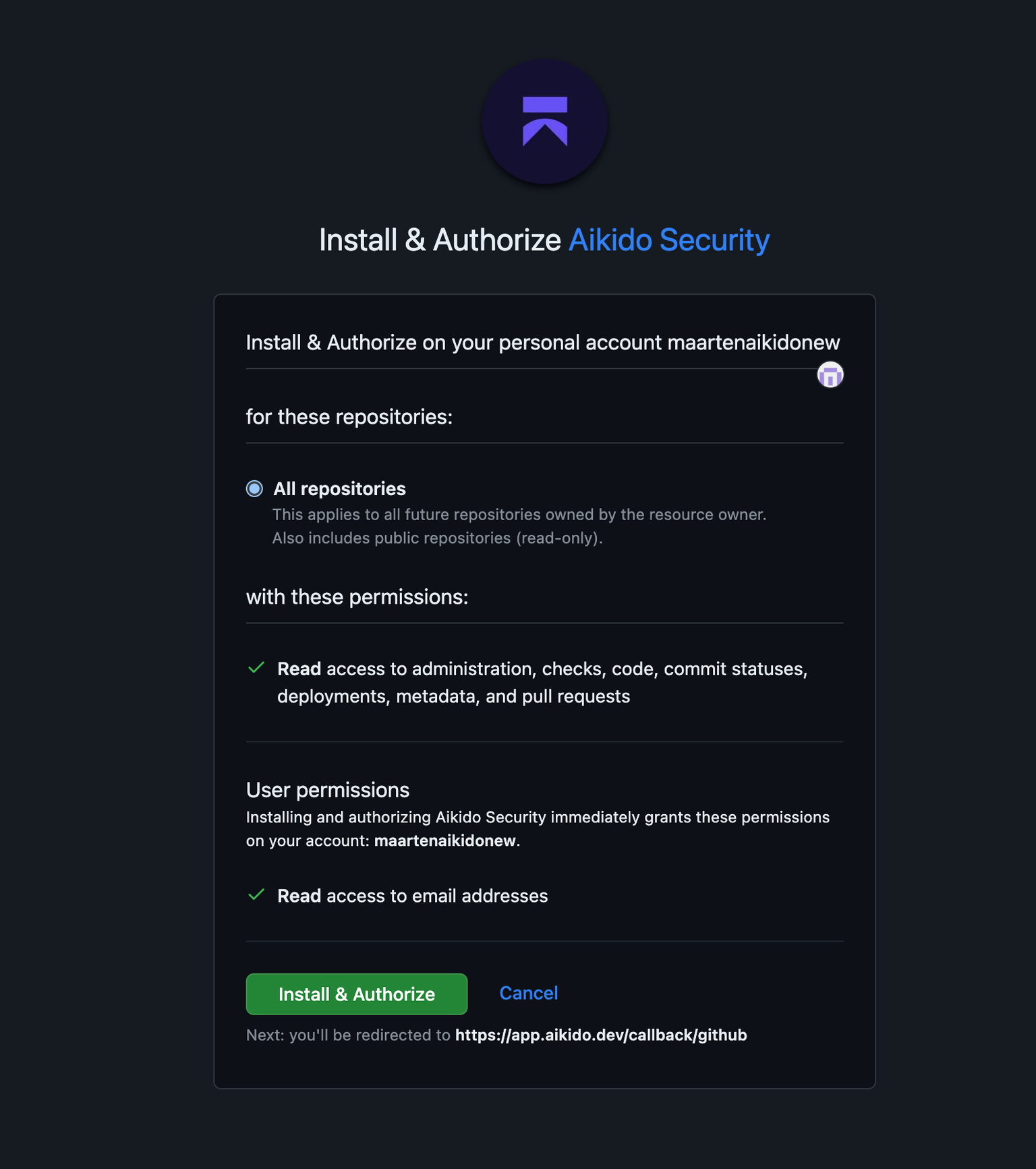
You are now redirected back to Aikido where you can choose which repositories should be scanned. Select the repositories you want and continue. Aikido will start scanning the chosen applications.
Explore Aikido
After granting access and validating the repositories you want to scan, your workspace will be converted and Aikido will automatically start scanning. After about 1 minute, you should see the first results come in