
PHP on nginx or Apache with PHP-FPM
This guide installs Zen Firewall for a PHP app served by nginx or Apache through PHP-FPM. Zen runs as a PHP extension inside the PHP-FPM workers, so you configure it in the PHP-FPM pool. nginx and Apache need no changes.
https://github.com/AikidoSec/firewall-php
If Apache runs PHP through mod_php instead of PHP-FPM, follow PHP on Apache (mod_php).
Prerequisites
- PHP 7.2 or later (tested up to PHP 8.5).
- nginx or Apache that passes PHP requests to PHP-FPM (
fastcgi_passin nginx,proxy_fcgiin Apache). sudoaccess on the server.- An Aikido account and a Zen Firewall token.
Set up Zen Firewall
Install the Zen package
Zen for PHP is installed as a system package.
Prerequisites:
- Ensure you have
sudoprivileges. - Use a supported PHP version (7.2+).
For Red Hat-based systems (RHEL, CentOS, Fedora):
rpm -Uvh --oldpackage https://github.com/AikidoSec/firewall-php/releases/latest/download/aikido-php-firewall.x86_64.rpmFor Red Hat-based arm64 / aarch64:
rpm -Uvh --oldpackage https://github.com/AikidoSec/firewall-php/releases/latest/download/aikido-php-firewall.aarch64.rpmFor Debian-based systems (Debian, Ubuntu):
curl -L -O https://github.com/AikidoSec/firewall-php/releases/latest/download/aikido-php-firewall.x86_64.deb
dpkg -i -E ./aikido-php-firewall.x86_64.deb
For Debian-based arm64 / aarch64:
curl -L -O https://github.com/AikidoSec/firewall-php/releases/latest/download/aikido-php-firewall.aarch64.deb
dpkg -i -E ./aikido-php-firewall.aarch64.deb
The package enables the extension for every PHP version and runtime it finds on the server, including PHP-FPM.
- Ensure you have
Add the token to your PHP-FPM pool
PHP-FPM clears the environment of its workers by default (
clear_env = yes), so variables you export in your shell or service manager don't reach Zen. Set them withenv[...]in the pool that serves your app instead.Open the pool file. The default pool is called
www:sudo nano /etc/php/<php-version>/fpm/pool.d/www.confsudo nano /etc/php-fpm.d/www.confAdd these lines at the end of the pool:
www.conf env[AIKIDO_TOKEN] = AIK_RUNTIME_... env[AIKIDO_BLOCK] = falseAIKIDO_BLOCK=falsestarts Zen in detection-only mode: it reports attacks but doesn't block them. Run it like this in staging for about 2 weeks to rule out false positives. See Configuration via environment variables for the other options.If your app uses more than 1 pool, add the lines to every pool that serves it. A pool without
AIKIDO_TOKENdoesn't report to Aikido.Restart PHP-FPM
Restart PHP-FPM to load the extension and the new pool settings. Reloading nginx or Apache is not enough.
sudo systemctl restart php<php-version>-fpmsudo systemctl restart php-fpmEnable request blocking and user identification
Use this middleware to enable rate limiting, user identification, and blocking features.
Zen Firewall does not require this middleware to block attacks. Core attack protection works without it. The middleware provides additional request context that Zen uses for protections such as rate limiting, user blocking, bot blocking, country blocking, and threat actor blocking.
Adapt the example to fit how your application identifies users and handles requests.
Call
set_userandshould_block_requestearly in every request, for example in your front controller (index.php) or a shared bootstrap file:if (extension_loaded('aikido')) { \aikido\set_user('123', 'John Doe'); $decision = \aikido\should_block_request(); if ($decision->block) { if ($decision->type === 'ratelimited') { http_response_code(429); header('Retry-After: ' . $decision->retry_after); exit('You are rate limited by Zen.'); } http_response_code(403); exit('You are blocked by Zen.'); } }Test your app
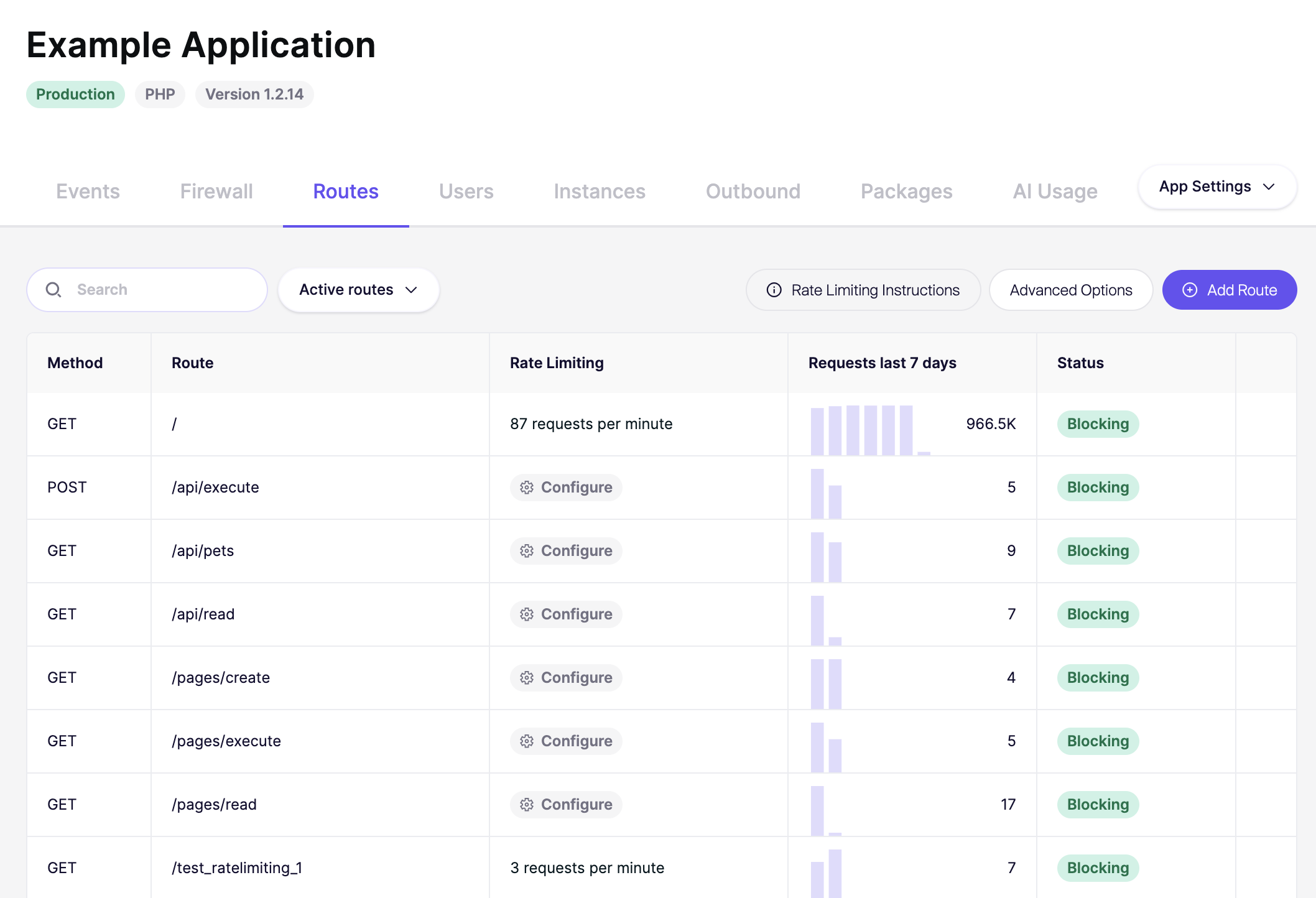
Browse to your application and perform a couple of actions or open a couple of pages. Zen will automatically discover the routes in your application.
Zen sends data back to Aikido every 10 minutes
You can verify a working agent by looking at the following pages of your Zen application:
- Events: Should show an "Application started" event.
- Routes: After some time your application routes will start showing here with the method, route and requests.
- Instances: Should show the number of active instances for your application where Zen is installed.
Set up rate limiting
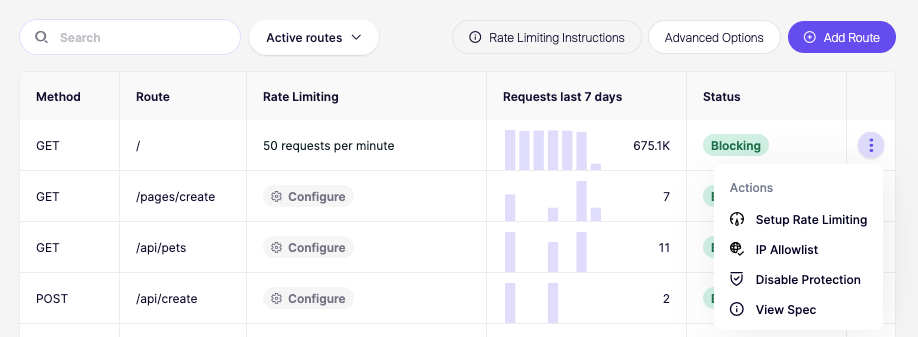
When you've added the Zen Firewall middleware you can test protecting a route from brute force attacks, you do this by setting up rate limit in the Aikido Dashboard:
- Click on the created app.
- Go to the Routes tab.
- Find the route you would like to limit and click Setup rate limiting.
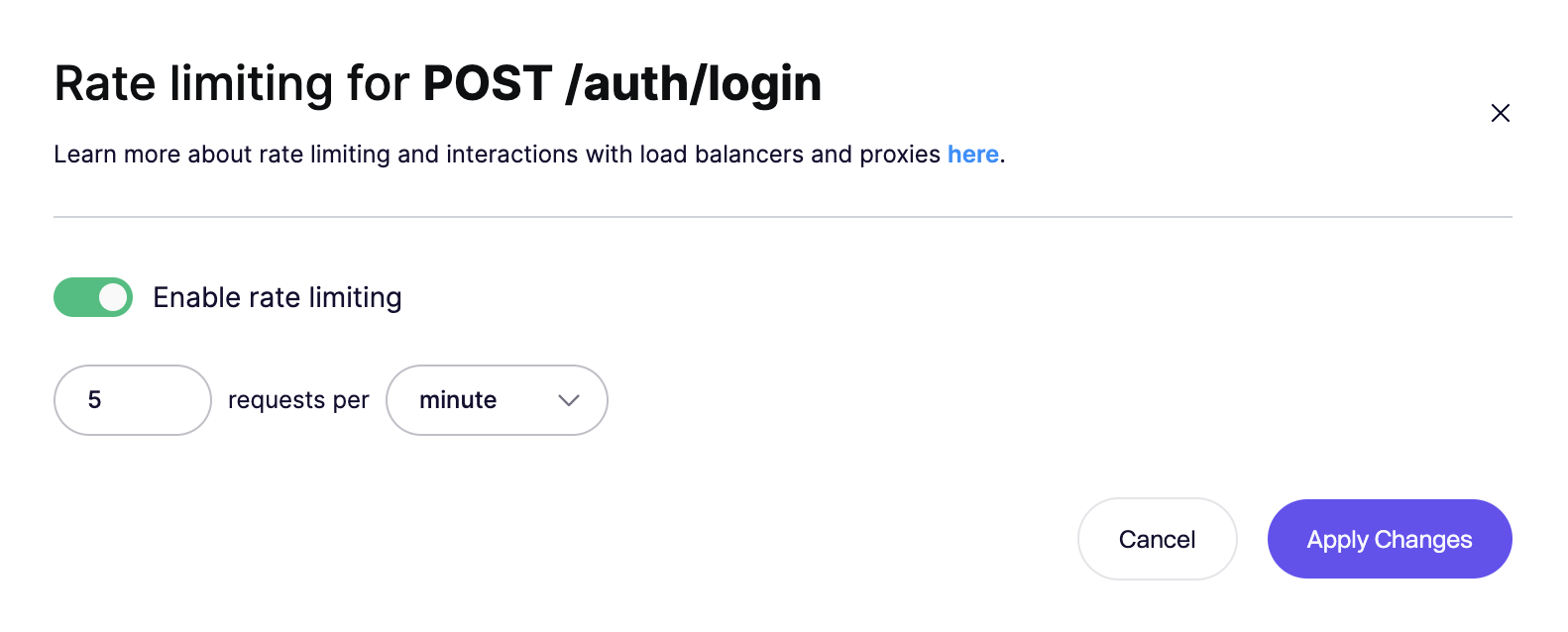
- Follow the instructions to configure the rate limit (e.g., 5 requests per minute).
Verify Rate Limiting
Start your app and try to access the route you've rate limited 5 times within a minute. After the fifth attempt, you should receive a rate limit error:
You are rate limited by Aikido firewall. (Your IP: 1.2.3.4)Explore next steps
Congrats you've successfully installed Zen Firewall. If you encountered any problems, have concerns or feature requests, don't hesitate to reach out to support.
You can now go and explore the many features that Zen Firewall provides:
- blocking-bot-traffic-with-zen-firewall.md
- blocking-tor-traffic-with-zen-firewall.md
- blocking-users-with-zen-firewall.md
- blocking-known-threat-actors-with-zen-firewall.md
- blocking-traffic-by-country-with-zen-firewall.md
- setting-up-rate-limiting-for-routes.md
- monitor-outbound-domains.md
Additional information: