> For the complete documentation index, see [llms.txt](https://help.aikido.dev/llms.txt). Markdown versions of documentation pages are available by appending `.md` to page URLs; this page is available as [Markdown](https://help.aikido.dev/ai-and-dev-tools/ide-plugins-overview/troubleshooting/visual-studio-information-for-support.md).
# Visual Studio - Information for Support
When contacting Aikido Support about the Visual Studio IDE plugin, please include the information below. This helps us diagnose issues faster and avoid unnecessary back and forth.
### Issue reproducibility
* Is the issue consistently reproducible?
* Does it occur with a single file or with multiple files?
* If possible share the file with us
* [Did you check connection to Aikido platform?](/ai-and-dev-tools/ide-plugins-overview/troubleshooting/troubleshooting-ide-plugin-connectivity.md)
### Plugin & Repository information
* [Plugin version (instructions below)](#visual-studio-version-details)
* Operating System
* IDE Version
* Link to repository in Aikido
* Usage of Docker, WSL or any other remote development environment
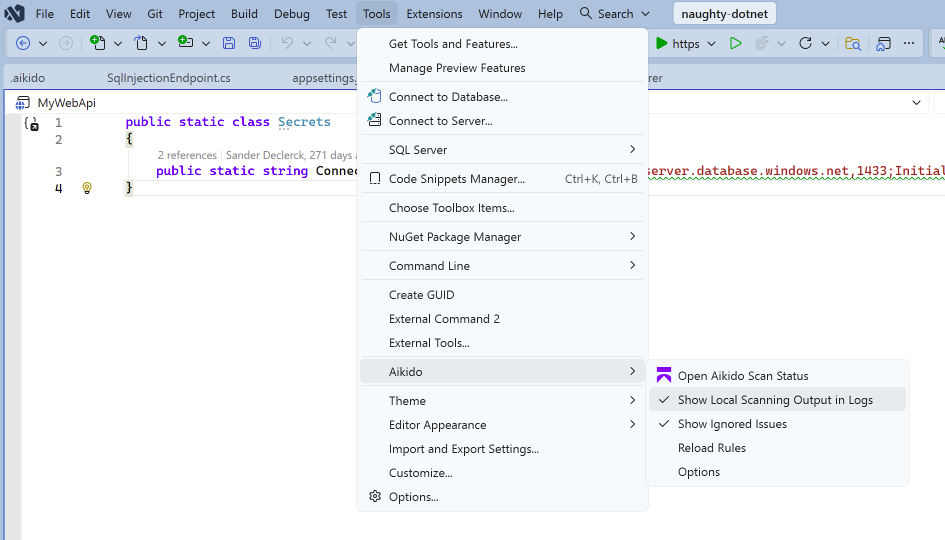
### Enable local scanning logs
1. Open Tools > Aikido.
2. Enable Show Local Scanning Output in Logs.
3. Reproduce the issue.
4. Copy and send the relevant log output.
### Visual Studio version details
1. Open Help > About Microsoft Visual Studio.
2. Click Copy Info.
3. Share the copied information so we can verify the exact Visual Studio and extension versions.
Providing all of the above allows us to identify IDE, plugin, or environment specific issues more efficiently.
---
# Agent Instructions
This documentation is published with GitBook. GitBook is the documentation platform designed so that both humans and AI agents can read, navigate, and reason over technical content effectively. Learn more at gitbook.com.
## Querying This Documentation
If you need additional information that is not directly available in this page, you can query the documentation dynamically by asking a question.
Perform an HTTP GET request on the current page URL with the `ask` query parameter, and the optional `goal` query parameter:
```
GET https://help.aikido.dev/ai-and-dev-tools/ide-plugins-overview/troubleshooting/visual-studio-information-for-support.md?ask=&goal=
```
`ask` is the immediate question: it should be specific, self-contained, and written in natural language.
`goal` is optional and describes the broader end goal you are ultimately trying to accomplish on behalf of the user. GitBook uses it to tailor the answer towards what is most useful for that goal.
The response will contain a direct answer to the question and relevant excerpts and sources from the documentation.
Use this mechanism when the answer is not explicitly present in the current page, you need clarification or additional context, or you want to retrieve related documentation sections.
%20(7).png?alt=media)