> For the complete documentation index, see [llms.txt](https://help.aikido.dev/llms.txt). Markdown versions of documentation pages are available by appending `.md` to page URLs; this page is available as [Markdown](https://help.aikido.dev/code-scanning/local-code-scanning/mac-setup-for-local-code-scanning.md).

# Mac Setup for Local Code Scanning

**Table of contents:**

* [Requirements](#requirements)
* [Temporary folder​](#temporary-folder)
* [How to set up Local Scanning](#how-to-set-up-local-scanning)
  * [1. Get your authentication token](#1-get-your-authentication-token)
  * [2. Adding the Local Scanner to your project](#2-adding-the-local-scanner-to-your-project)
  * [3. Running the Local Scanner](#3-running-the-local-scanner)
  * [4. Check your scanning results](#4-check-your-scanning-results)

## Mac Setup for Local Code Scanning

The Aikido Security Local Scanner is a tool that enables you to perform Aikido Security scans within your environment, ensuring your code never leaves your premises. The scans take place locally, and the results are then uploaded to the Aikido Security platform. This setup allows you to scan any repos locally own your own machine.

### Requirements <a href="#requirements" id="requirements"></a>

We currently support the **ARM64** operating system architecture. This is used on newer Macs built on Apple Silicon, shipped in late 2020 and beyond.

### Temporary folder​ <a href="#temporary-folder" id="temporary-folder"></a>

The scanner creates a temporary local folder (default .aikidotmp) to perform certain actions:

* Copy certain lockfiles to run efficient scanning.
* Write the results of the scanners.

This folder is cleaned up after the scanning is finished.

In addition, some files are copied to the temporary operating directory. Ensure that enough space is available; we recommend a minimum of 2GB.​

### How to set up Local Scanning <a href="#how-to-set-up-local-scanning" id="how-to-set-up-local-scanning"></a>

#### 1. Get your authentication token <a href="#id-1-get-your-authentication-token" id="id-1-get-your-authentication-token"></a>

1. Go to the [Local Scanner setup page](https://app.aikido.dev/settings/integrations/localscan)
2. Generate an authentication token and copy. Note that you will only be able to view this token once.
3. Add this token as argument `--apikey` when running the Local Scanner in your project .

#### 2. Adding the Local Scanner to your project <a href="#id-2-adding-the-local-scanner-to-your-project" id="id-2-adding-the-local-scanner-to-your-project"></a>

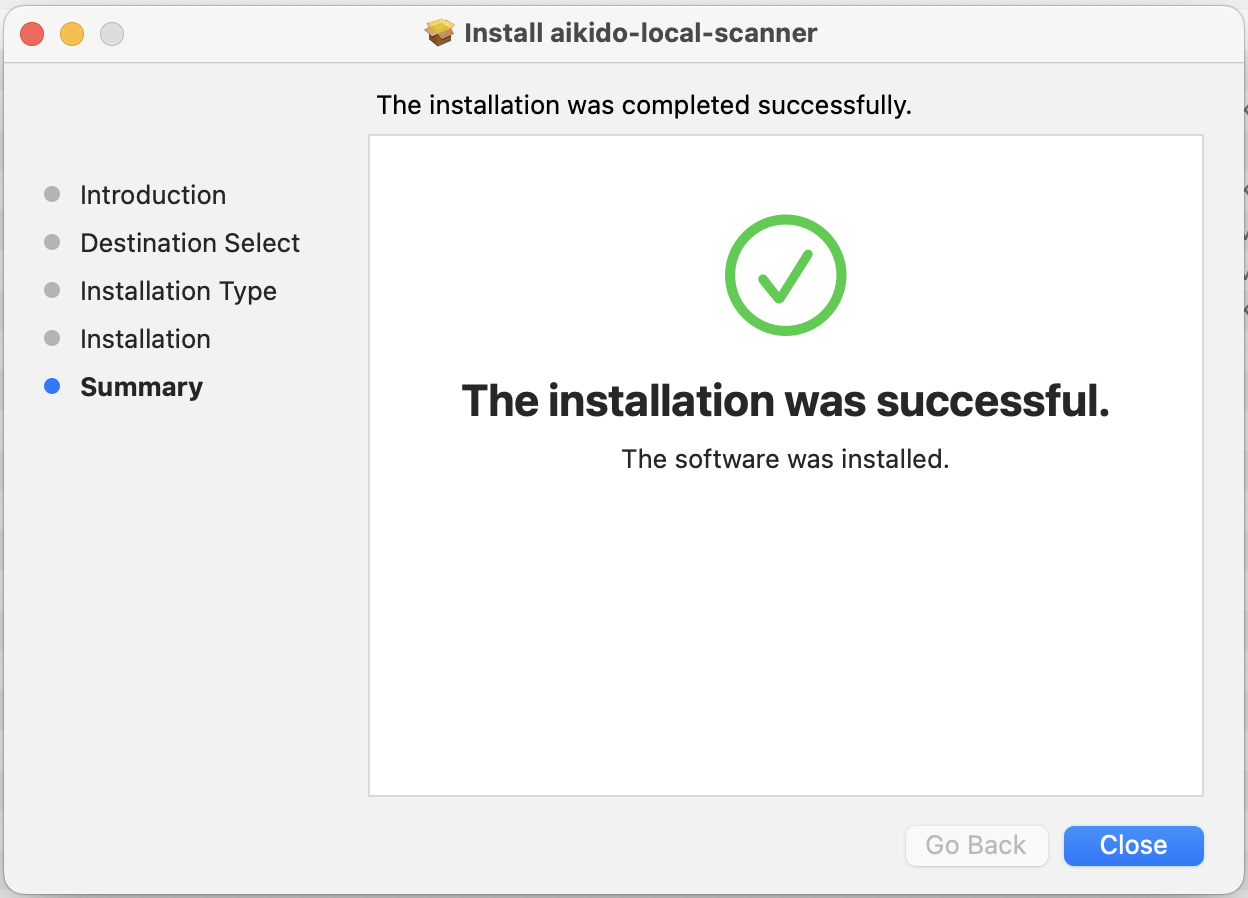
1. Download the Local Scanner installer from the Aikido UI.
2. Run the installer.

<figure><img src="/files/ZrwfCse3aeGVqJOEsxs8" alt="Aikido Local Scanner installer" width="375"><figcaption></figcaption></figure>

#### 3. Running the Local Scanner <a href="#id-3-running-the-local-scanner" id="id-3-running-the-local-scanner"></a>

**Option 1:**\
Now all that is left to run the scanner on your repository.

```shellscript
aikido-local-scanner scan path_to_your_repo --apikey AIK_CI_xxx --repositoryname DemoApp --branchname main
```

**Option 2:**\
Alternatively, you can use our [Docker image](https://hub.docker.com/r/aikidosecurity/local-scanner) to scan your repository. Ensure that you have [Docker installed](https://docs.docker.com/desktop/) before proceeding. Navigate into the directory you want to scan and run a scan using a command like:

```shellscript
docker run --rm -v "$(pwd):/my-app" aikidosecurity/local-scanner scan /my-app --apikey AIK_CI_xxx --repositoryname RepoName --branchname main
```

If you are on an ARM based system, add the `--platform=linux/amd64` flag to pull the Docker image.

#### 4. Check your scanning results <a href="#id-4-check-your-scanning-results" id="id-4-check-your-scanning-results"></a>

After your first scan is done, you can go to the Aikido Feed to check out your results. A repository with the name you specified will have been created, containing all results from the scanning.


---

# Agent Instructions
This documentation is published with GitBook. GitBook is the documentation platform designed so that both humans and AI agents can read, navigate, and reason over technical content effectively. Learn more at gitbook.com.

## Querying This Documentation
If you need additional information that is not directly available in this page, you can query the documentation dynamically by asking a question.

Perform an HTTP GET request on the current page URL with the `ask` query parameter, and the optional `goal` query parameter:

```
GET https://help.aikido.dev/code-scanning/local-code-scanning/mac-setup-for-local-code-scanning.md?ask=<question>&goal=<endgoal>
```

`ask` is the immediate question: it should be specific, self-contained, and written in natural language.
`goal` is optional and describes the broader end goal you are ultimately trying to accomplish on behalf of the user. GitBook uses it to tailor the answer towards what is most useful for that goal.

The response will contain a direct answer to the question and relevant excerpts and sources from the documentation.

Use this mechanism when the answer is not explicitly present in the current page, you need clarification or additional context, or you want to retrieve related documentation sections.