
Full Workspace Scan in IDE
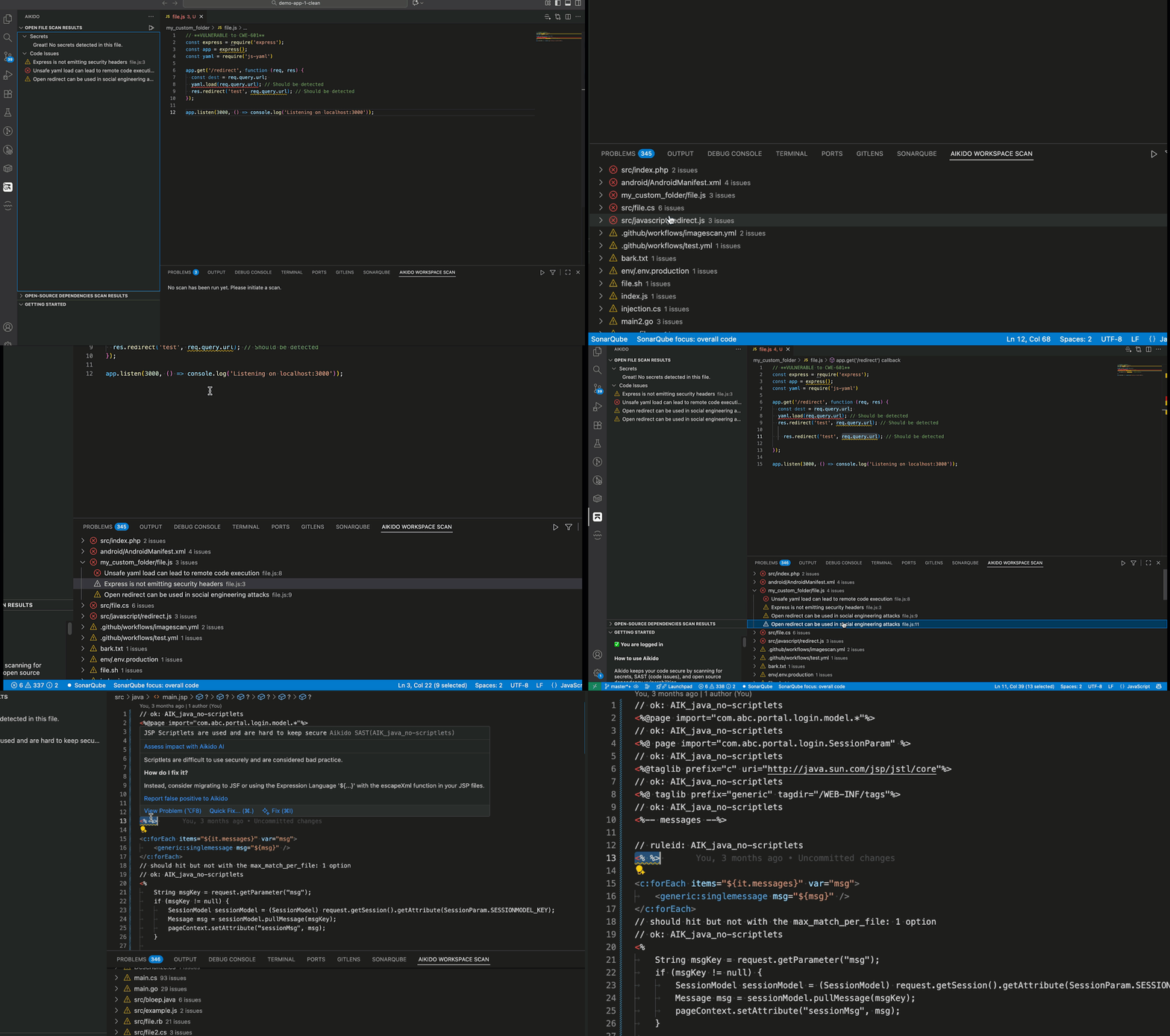
The Aikido Workspace Scan lets you analyze your entire project at once, so you can quickly review security issues across all files, not just the ones you have open.
#When to Use a Full Scan
Use full scans when:
- You want a security baseline for your repository.
- You’re about to push significant code changes.
For regular development, open/save scans continue to provide instant feedback as you write code.
#Run a Full Scan
You can start a full scan directly from the Aikido panel in VS Code:
- Open the Aikido sidebar.
- Click Workspace Scan at the top of the view.
- Select whether you want to scan:
- Entire workspace – runs a complete analysis of all source files in your project.
- Changed files only – scans only files that have been modified since your last Git commit.
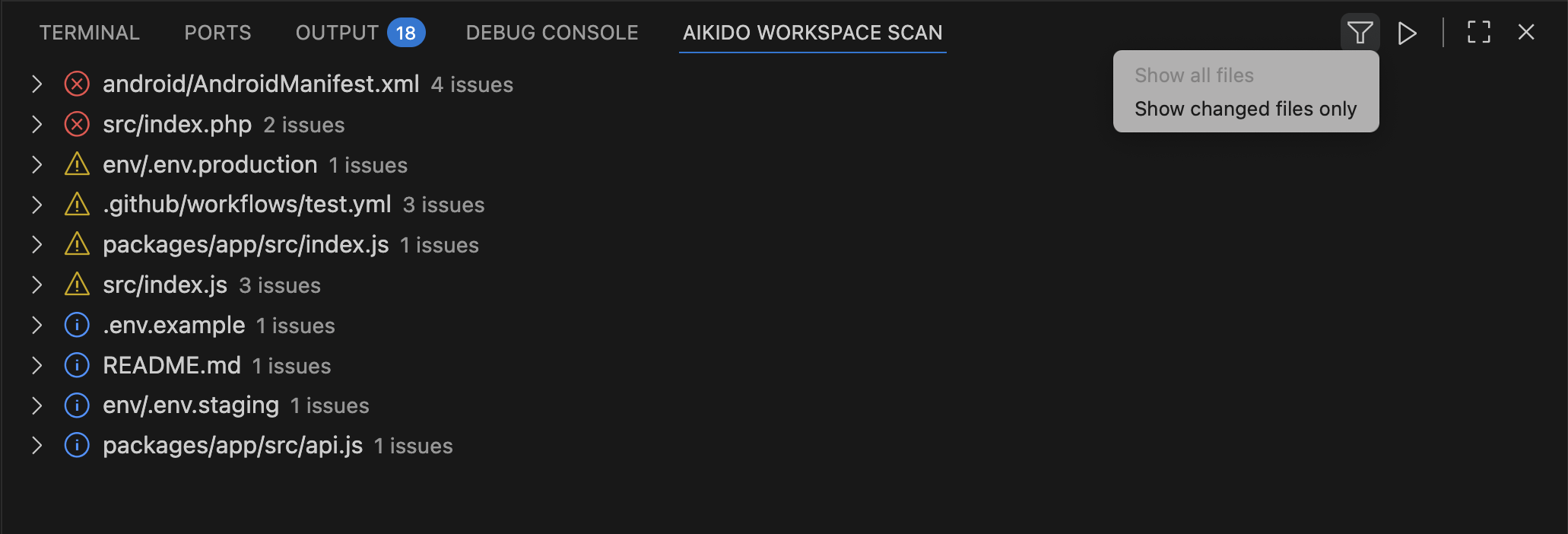
During the scan, Aikido checks for:
- Code issues (SAST): insecure coding patterns and misconfigurations.
- Secrets: exposed tokens, passwords, and API keys.
Results appear inline in your editor and in the Scan Results panel, grouped by category. You can hover over each finding for more details or open it in Aikido for deeper triage.
The workspace scan does not run automatically. You’ll need to start a new scan manually whenever you want updated results.