> For the complete documentation index, see [llms.txt](https://help.aikido.dev/llms.txt). Markdown versions of documentation pages are available by appending `.md` to page URLs; this page is available as [Markdown](https://help.aikido.dev/code-scanning/connect-your-source-code/connect-bitbucket-data-center.md).

# Connect Bitbucket Data Center

Aikido lets you connect Bitbucket Data Center to scan your repositories.

#### Step 1. Sign in to Aikido

Log in to Aikido with **Google** or **Microsoft**.

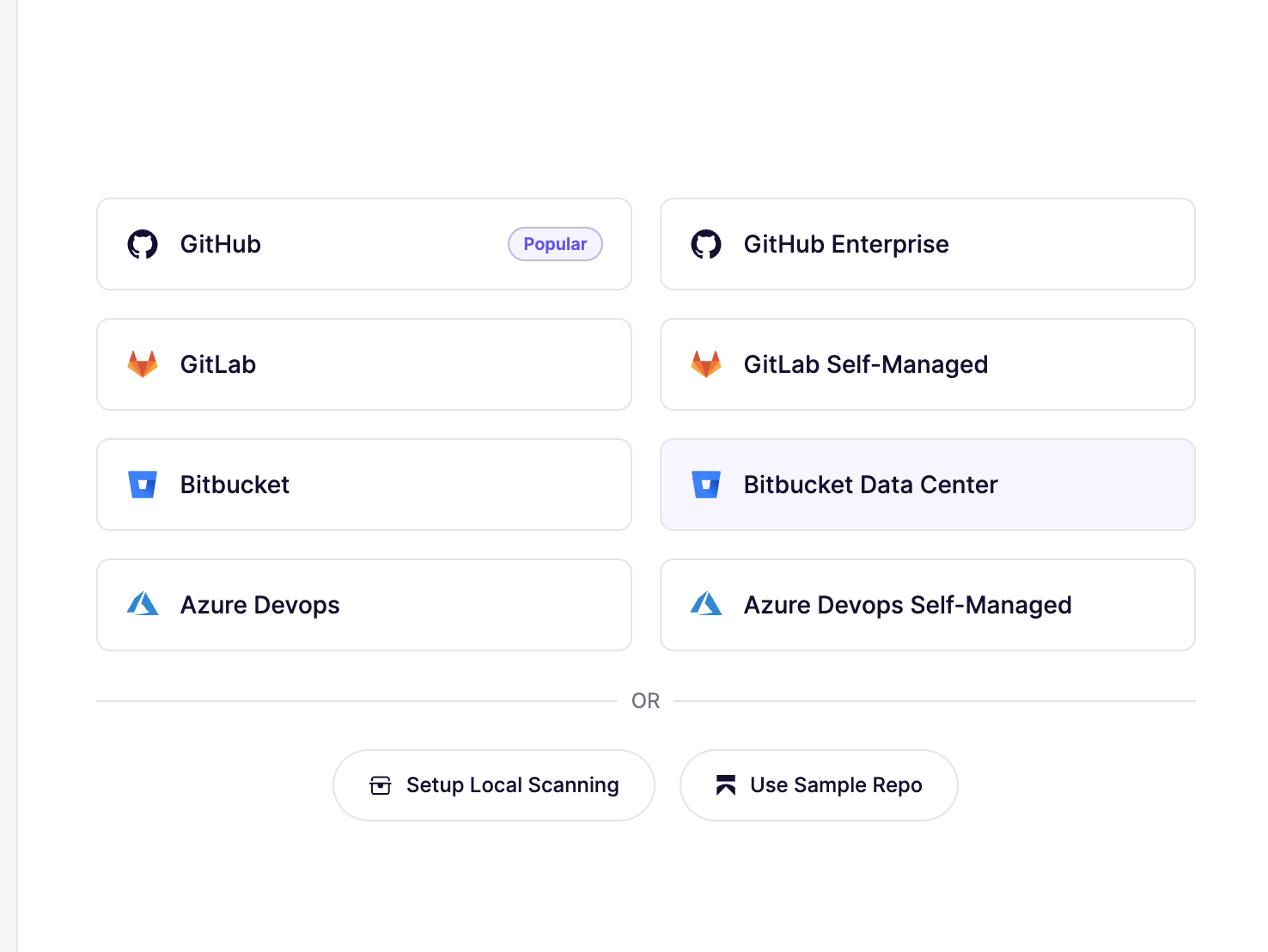
#### Step 2. Choose Bitbucket Data Center

On the SCM selection screen, choose **Bitbucket Data Center**.

<figure><img src="/files/swK4CJEntm4CDoqUJN94" alt=""><figcaption></figcaption></figure>

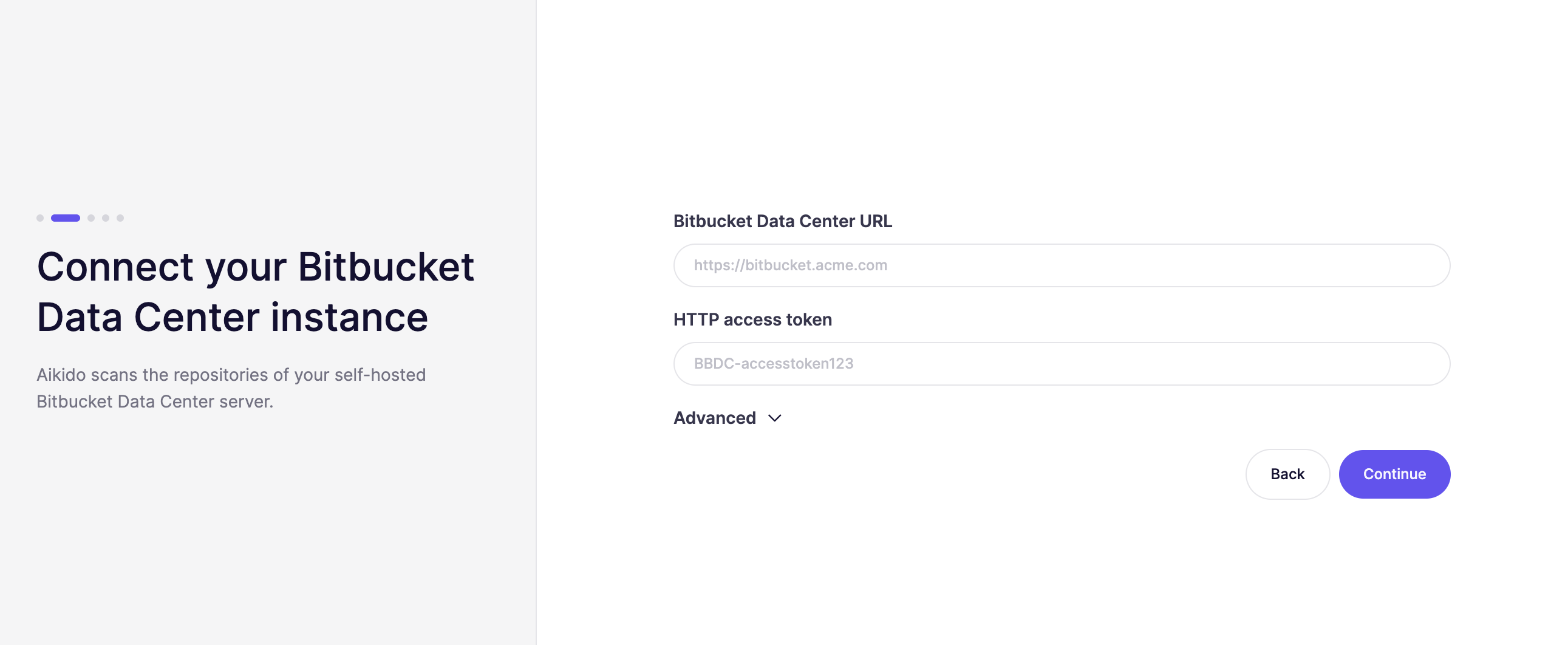
#### Step 3. Add your Bitbucket details

Enter your `Bitbucket Data Center URL` and `HTTP access token`.

<figure><img src="/files/T6o4drBmDuDuTnYKZTg8" alt=""><figcaption></figcaption></figure>

You can find the `HTTP access token` under **Profile** → **Manage account** → **HTTP access tokens** → **Create token**.

**Required token permissions**

Aikido requests the following token permissions for your Bitbucket on-premises instance:

* **Project:** Write
* **Repository:** Write

**Why Write access?**

Write access is required to support the full Aikido feature set, including AutoFix (creating merge-ready PRs) and PR checks (posting status checks and comments on pull requests).

**If you only need scanning**

If your team only uses Aikido for repository scanning and AI Pentesting, **Read permissions** are sufficient. You can configure a token with Read-only access and all scanning functionality will work as expected.
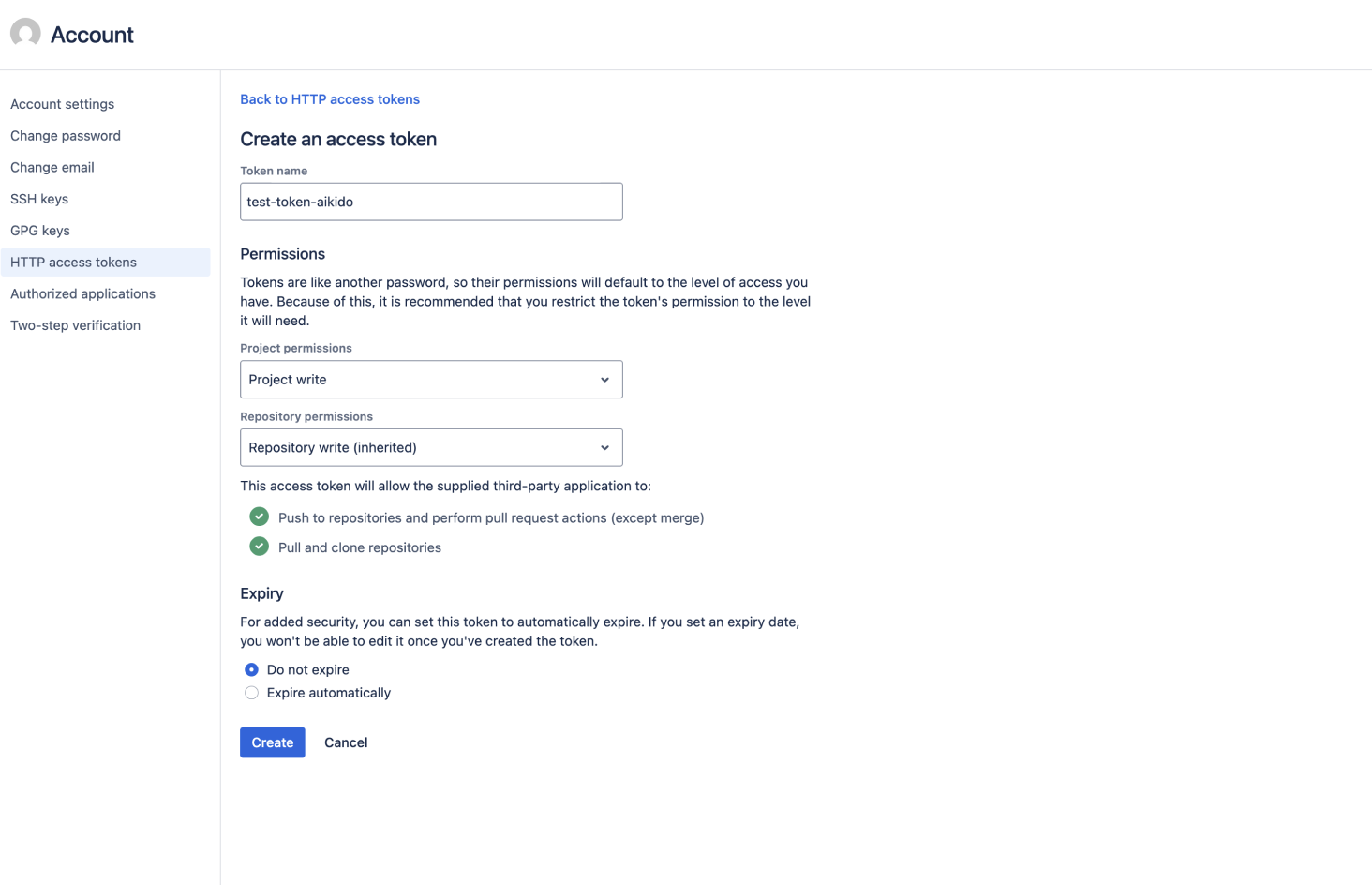
<figure><img src="/files/SYJ12nqWH1Vqxe6ZdF8V" alt=""><figcaption></figcaption></figure>

#### Step 4. Select a project

Choose the Bitbucket project you want to connect.
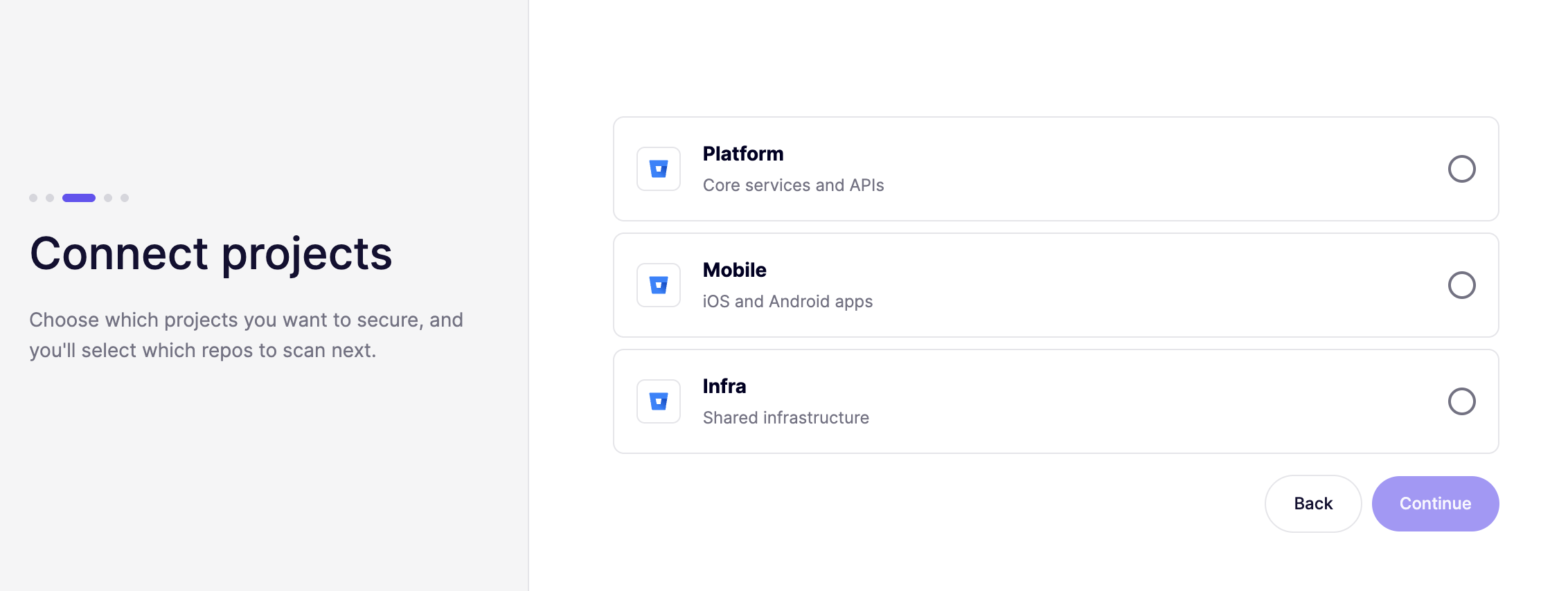
<figure><img src="/files/3NFwthr7VUGN09qpuDxk" alt=""><figcaption></figcaption></figure>

#### Step 5. Select repositories and finish

Choose the repositories you want Aikido to scan.
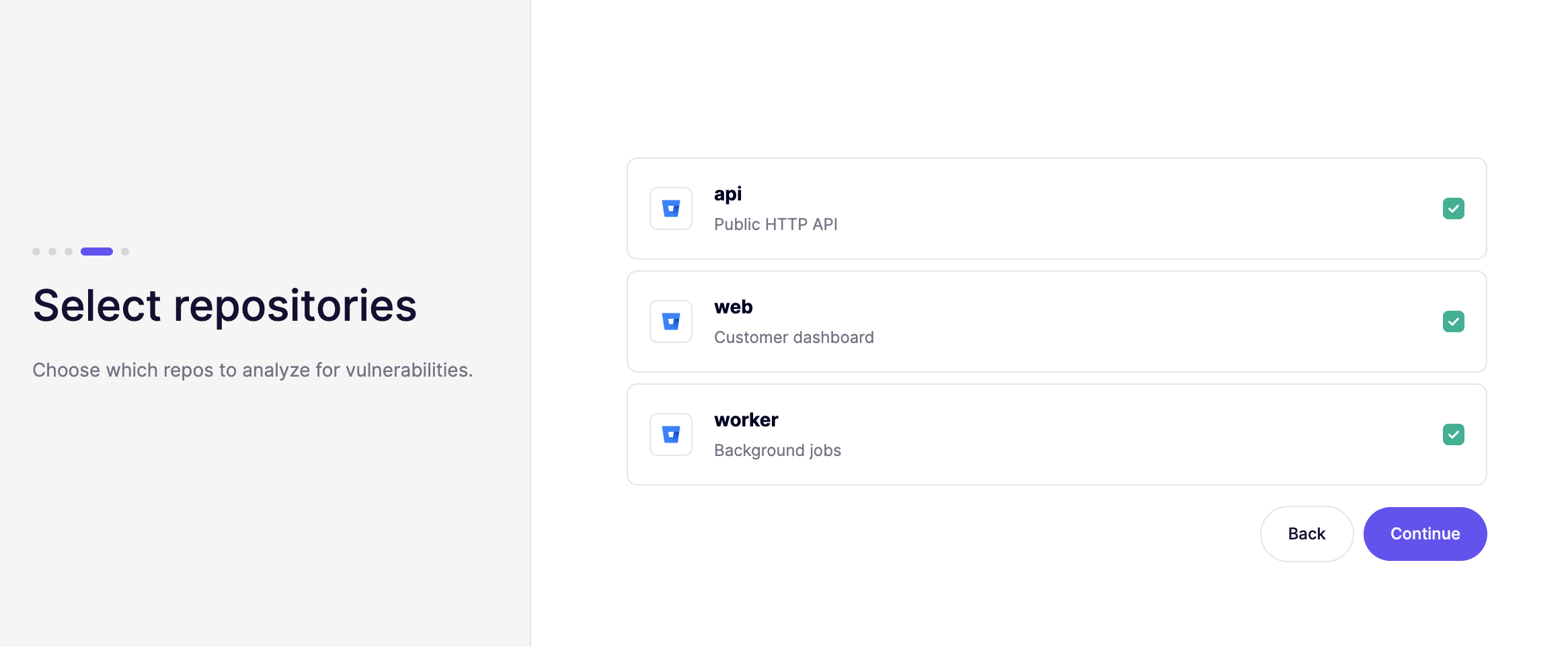
Finish the setup to start scanning.


---

# Agent Instructions
This documentation is published with GitBook. GitBook is the documentation platform designed so that both humans and AI agents can read, navigate, and reason over technical content effectively. Learn more at gitbook.com.

## Querying This Documentation
If you need additional information that is not directly available in this page, you can query the documentation dynamically by asking a question.

Perform an HTTP GET request on the current page URL with the `ask` query parameter, and the optional `goal` query parameter:

```
GET https://help.aikido.dev/code-scanning/connect-your-source-code/connect-bitbucket-data-center.md?ask=<question>&goal=<endgoal>
```

`ask` is the immediate question: it should be specific, self-contained, and written in natural language.
`goal` is optional and describes the broader end goal you are ultimately trying to accomplish on behalf of the user. GitBook uses it to tailor the answer towards what is most useful for that goal.

The response will contain a direct answer to the question and relevant excerpts and sources from the documentation.

Use this mechanism when the answer is not explicitly present in the current page, you need clarification or additional context, or you want to retrieve related documentation sections.