# Send Alerts to Multiple Slack Channels

## Introduction <a href="#introduction" id="introduction"></a>

Streamline your security response with Aikido by setting up tailored alerts to be sent to designated Slack channels. This guide will help you ensure that your team receives timely and relevant security notifications.

## Setting Up Slack Alerts <a href="#setting-up-slack-alerts" id="setting-up-slack-alerts"></a>

*Prerequisites: Ensure your Slack integration is active. You can find how to set up the Slack Integration* [*here*](https://help.aikido.dev/en/articles/8153269-how-to-set-up-slack-notifications)*.*

#### Step 1: Create an Alert <a href="#step-1-create-an-alert" id="step-1-create-an-alert"></a>

* Navigate to the [Slack integration page](https://app.aikido.dev/settings/integrations/notifications/slack) and click ‘Create Alert’ to bring up the configuration modal.

#### Step 2: Opt for Team-Based Notifications <a href="#step-2-opt-for-team-based-notifications" id="step-2-opt-for-team-based-notifications"></a>

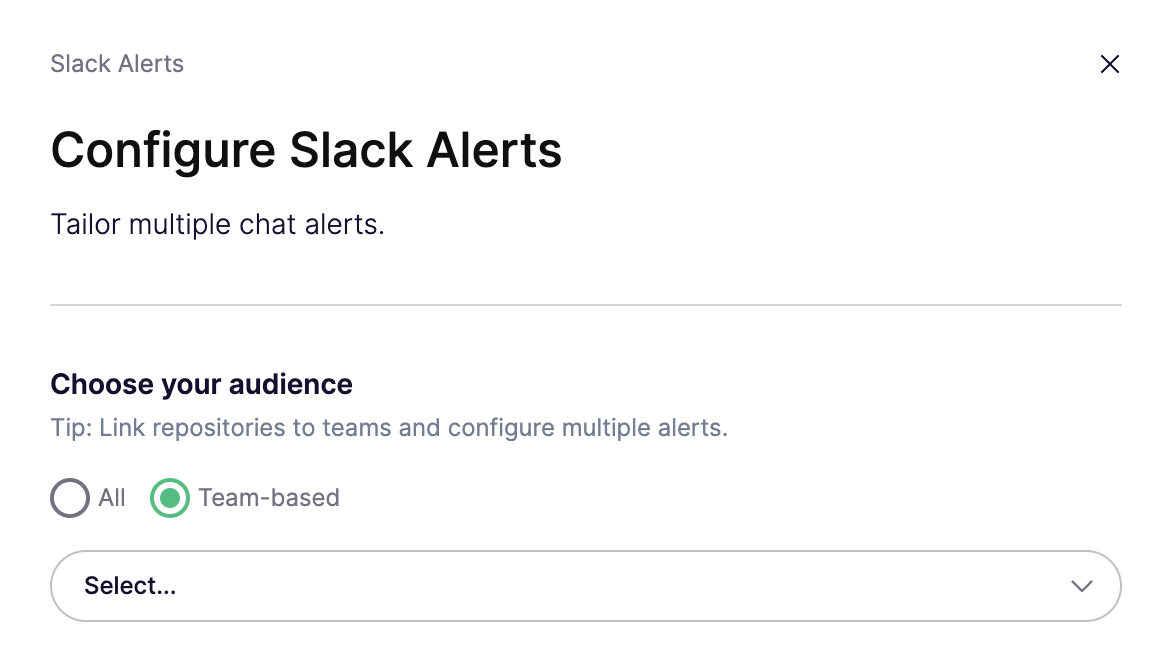
* Choose 'Team-based' to route alerts to specific channels. Preconfigure your Teams with the right repositories and containers access.

![Configure Slack alerts for all users or specific teams with custom options.](/files/7BRysbyzIEaXwLNlTva5)

#### Step 3: Map Channels to Teams <a href="#step-3-map-channels-to-teams" id="step-3-map-channels-to-teams"></a>

* For **Weekly Digests**, link a channel for summaries of weekly security issues.
* For **Critical Issues**, link a channel for real-time alerts on urgent vulnerabilities.

![Notification channels selection for weekly digest and critical issues alerts.](/files/N4Kt5Zu36s4wOQCK35Ap)

> Note: you can decide to only pick one of the two options to create alerts.

#### Step 4: Save Your Configuration <a href="#step-4-save-your-configuration" id="step-4-save-your-configuration"></a>

* Confirm your choices and click 'Save Alert' to activate the alerting system.

## Implementation Tips <a href="#implementation-tips" id="implementation-tips"></a>

* Regularly review and correct team settings in Aikido to maintain alert accuracy.
* Confirm that the Slack channels correspond to the correct teams to ensure proper communication

***


---

# Agent Instructions: Querying This Documentation

If you need additional information that is not directly available in this page, you can query the documentation dynamically by asking a question.

Perform an HTTP GET request on the current page URL with the `ask` query parameter:

```
GET https://help.aikido.dev/getting-started/chat-and-alerts/send-alerts-to-multiple-slack-channels.md?ask=<question>
```

The question should be specific, self-contained, and written in natural language.
The response will contain a direct answer to the question and relevant excerpts and sources from the documentation.

Use this mechanism when the answer is not explicitly present in the current page, you need clarification or additional context, or you want to retrieve related documentation sections.